
Mandatory security update for Evolis software (March 2026)
Summary
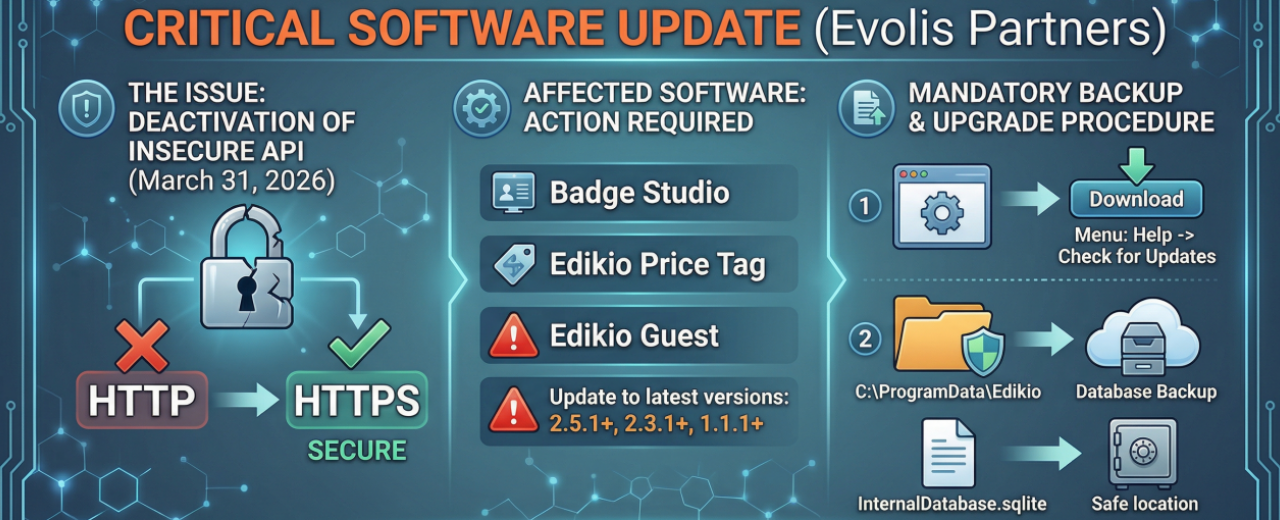
Following a security audit on the software infrastructures, Evolis has implemented new compliance standards for the license APIs. To ensure business continuity and avoid the downgrading of licenses to "Demonstration" mode, it is necessary to update the Badge Studio, Edikio Price Tag, and Edikio Guest software by March 31, 2026.
Description of the change
The current CARDPRESSO license API, used in the background for software activation, deactivation, and updates, has so far supported both the secure protocol (HTTPS) and the non-secure protocol (HTTP).
To eliminate potential vulnerabilities, support for the HTTP protocol will be permanently removed on March 31, 2026. Previous versions of the software relying on this protocol will no longer be able to communicate correctly with the license servers.
Compliant Software Versions
To maintain full functionality, please ensure your systems are updated to the following versions (or later):
- Badge Studio: v2.5.1
- Edikio Price Tag: v2.3.1
- Edikio Guest: v1.1.1
Important note for Edikio Price Tag v1.x.x users: > Since this version requires synchronization with the server at every startup, after the deadline of March 31, 2026 the software will no longer be able to verify the license and will start exclusively in "Demonstration" mode. Updating to the latest version is therefore mandatory.
Update Instructions
You can download the new installation packages in two ways:
- From the software: Help Menu -> Check for updates.
- From the official portal: By accessing the download area of the Evolis MyPlace website.
Security Procedure: Database Backup
Before proceeding with the update, we strongly recommend performing a precautionary data backup.
Method 1: Via software interface (Recommended)
- Use the Backup function integrated into the Edikio software.
- Select a secure destination folder (not inside the installation directory).
- Following the update, use the Restore function and select the previously created .zip file.
Method 2: Manual backup (Advanced)
If you prefer a manual backup of the files:
- Copy the contents of the C:\ProgramData\Edikio folder to a secure location (e.g., Desktop or External Drive).
- Once the update is complete, to restore the data, copy the InternalDatabase.sqlite file from the \database backup folder to the system folder: C:\ProgramData\Edikio\database.
Technical Support:
Our technicians are available to assist you during this transition. If you have any doubts about the procedure, we invite you to contact our support service.
Related posts

Transition to New Sustainable Packaging for FARGO Consumables

NIS2 Directive: A Guide to Physical Data Security to Avoid Penalties

Evolis Agilia: Total color control for high-definition badge printing

UNI/PdR 125 Gender Equality Certification

Ermes and Evolis: Over 20 Years of Excellence and Clarity in the Distribution Channel

Primacy 2 Special Edition 25

ID-ALL TradeIN-UP 2025

Entrust TradeIN 2025

Entrust Sigma DSE

0 comment(s)